Click Tracking
Affiliate tracking from click to confirmed sale
Follow an affiliate referral through conversion reporting, attribution, order validation and commission approval.
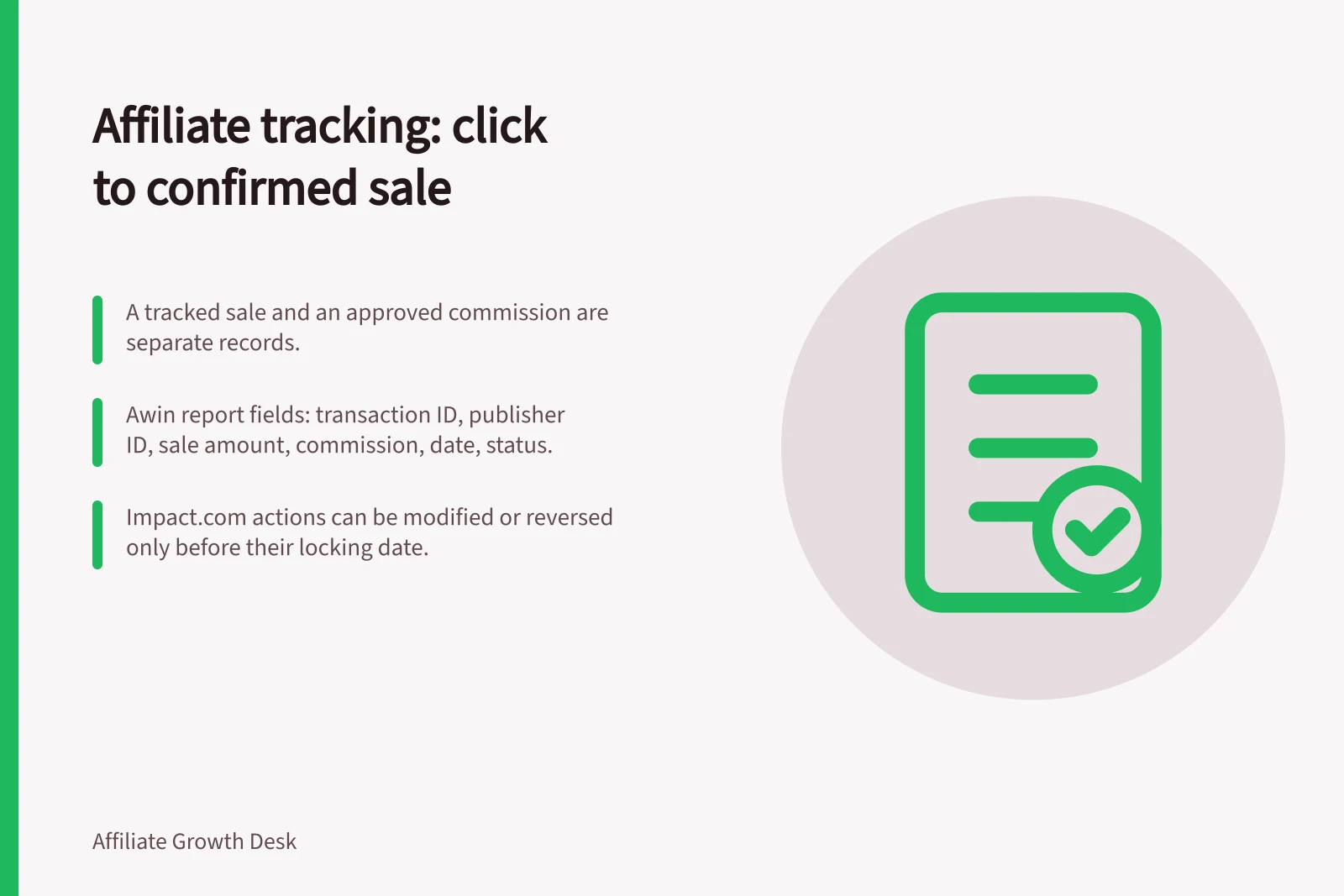
Affiliate tracking records a referral, links an eligible order to it under the program's credit rule, and calculates a proposed commission. The program's validation process then confirms the commission; this may include advertiser review under its terms. A tracked sale and an approved commission are separate records.
Follow the record trail
| Stage | Record to inspect | Question it answers |
|---|---|---|
| Click | Publisher, link, time and available reference | Was a referral recorded? |
| Conversion | Store order reference, event time, value and currency | Was the purchase reported with the right data? |
| Attribution | Referral window and competing-claim rule | Which partner, if any, receives credit? |
| Validation | Store status and commission decision | What amount is approved? |
A partner link typically contains or resolves to an identifier for the partner or referral. When a customer clicks it, the tracking system records the referral; the integration then passes the associated reference with the reported conversion, so the platform can match the purchase to that referral.
The tracking method and available fields depend on the integration. A click ID may reach the landing page or a server-side event, but need not remain visible in every checkout URL.
The store order reference is the practical key for comparing the conversion with what the customer bought.
Record trail from click to confirmed sale
- ClickPublisher, link, time and available reference — was a referral recorded?
- ConversionStore order reference, event time, value and currency — was the purchase reported with the right data?
- AttributionReferral window and competing-claim rule — which partner, if any, receives credit?
- ValidationStore status and commission decision — what amount is approved?
Use transaction reports to read the evidence
On Awin Classic, find the Transactions report under Reports > Performance > Transactions. Choose a date range or apply filters for the transactions you want to review, then export the report as a CSV or for Excel. This gives the advertiser a file to compare with the store's order records.
Awin's guidance lists these report fields: transaction unique ID, publisher ID, sale amount, commission, transaction date and commission status. Read them together: publisher ID identifies the partner, transaction ID identifies the platform record. Sale amount and commission are separate figures.
Use the report to locate a transaction and inspect its fields; a summary total does not prove an order is eligible. The store order reference remains the practical comparison key, while the platform report gives the affiliate-side record and status.
Awin Transactions report fields to inspect
- Transaction unique ID
- Publisher ID
- Sale amount
- Commission
- Transaction date
- Commission status
Define credit and commission separately
State the referral window and the rule for competing interactions in the partner terms. The window sets credit eligibility; it does not guarantee browser storage will last as long. Credit under a configured rule does not show the publisher created additional demand.
Define the payable event and calculation basis: eligible items, discounts, mixed baskets, cancellations and refunds. The store must supply the data needed to apply that rule. If it cannot, simplify the rule or correct the integration before relying on its commission figure.
Keep changes within the platform’s controls
Impact.com supports modifications or reversals for actions whose details change, including cancelled or returned items and corrected conversion data. Its guidance states actions can only be modified or reversed before their locking date. Once locked, they cannot be changed through that process.
A modification can re-evaluate commission using the contract terms active when the modification is made. A corrected action may therefore not retain the payout calculated under earlier terms. Check the applicable terms when assessing a changed record, and retain the decision and reason as part of the validation trail.
Before modifying or reversing an Impact.com action
- Check the action is before its locking date
- Once locked, it cannot be changed through that process
- A modification can re-evaluate commission using the contract terms active when the modification is made
- A corrected action may not retain the payout calculated under earlier terms
- Check the applicable terms when assessing a changed record
- Retain the decision and reason as part of the validation trail
Check the journey and review the order
Trace a controlled referral through the relevant landing and checkout route, then compare the store order with the affiliate transaction. Check the partner, order reference, event time, currency, eligible value and recorded commission. A successful check covers that route; other browsers or checkout paths may behave differently.
A conversion may remain pending while the advertiser reviews it under the program's terms.
Check a controlled referral and order
- Partner
- Order reference
- Event time
- Currency
- Eligible value
- Recorded commission
Run a controlled platform test
Awin's tracking test is available on Awin Classic. In the platform, open Support > Integration > Tracking Diagnosis and choose Create a test transaction. Use the unique test publisher link supplied by the tool, then complete a purchase on your website as a customer would.
If you are testing Commission Groups in Awin, choose a product assigned to the group you want to check. Return to Tracking Diagnosis to inspect the test transaction. This controlled run checks the referral and purchase route you used; it does not establish other routes work identically.
Impact.com provides a separate Test Actions workflow. Create test terms with a Default payout set to 0%, then go to Engage > Transactions > Test Actions and select Start New Test. Enter the required fields and generate the test link; optional fields include an Ad, a Shared ID and a Custom Landing Page.
Open the generated link and complete the test journey. Under Validate Actions, select View my test action to find the action on the Test Actions screen. It may take up to 30 minutes to appear; if it has not arrived by then, the guidance is to run the test again.
Use the test record to check its status, action date, order ID, event type, revenue, payout and locking date. Impact.com's Test Event Details view provides further event information and lets you approve or reject a test action. Treat these as test records, distinct from live sales awaiting validation.
Awin Classic tracking test workflow
- Open Support > Integration > Tracking Diagnosis and choose Create a test transaction
- Use the unique test publisher link supplied by the tool
- If testing Commission Groups, choose a product assigned to the group you want to check
- Complete a purchase on your website as a customer would
- Return to Tracking Diagnosis to inspect the test transaction
Impact.com Test Actions workflow
- Create test terms with a Default payout set to 0%
- Go to Engage > Transactions > Test Actions and select Start New Test
- Enter required fields and generate the test link; optional fields include an Ad, a Shared ID and a Custom Landing Page
- Open the generated link and complete the test journey
- Under Validate Actions, select View my test action to find the action on the Test Actions screen
- It may take up to 30 minutes to appear; if it has not arrived by then, run the test again
- Use the test record to check status, action date, order ID, event type, revenue, payout and locking date
- In Test Event Details, view further event information and approve or reject a test action
In this guide
- Understanding affiliate cookies and attribution windowsLearn how browser cookies, referral windows and credit rules differ, and why a sale may not be attributed.
- Checking click IDs through a checkout journeyTrace a test affiliate click from landing page to order record and locate where referral data stops matching.
- Reconciling tracked orders with approved commissionsMatch affiliate transactions to store orders, investigate exceptions and calculate approved commissions.